Vessel Master
The Vessel Master (sidebar → Vessel Management → Vessel Master) is the list of every vessel in VIMS. From here you can search and filter vessels, create new ones, and open a vessel to see its full record.
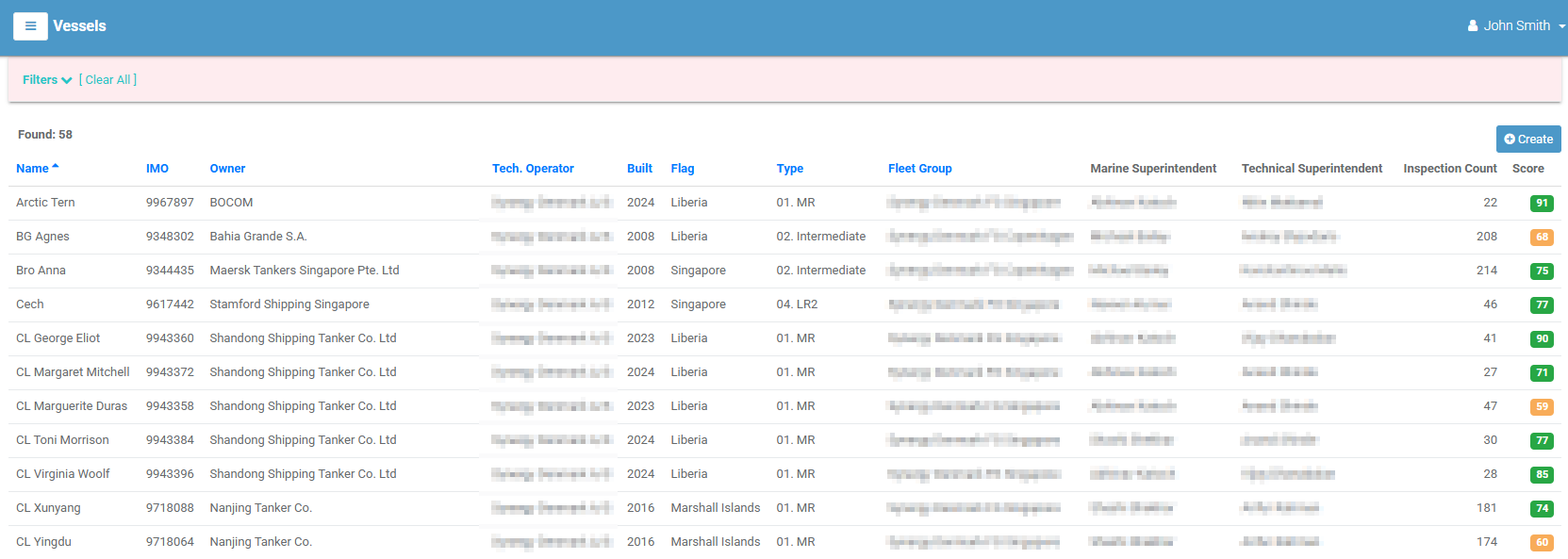
The vessel list
Each row is a vessel; select it to open its detail page. Inactive vessels are shown in red. Columns:
| Column | Meaning |
|---|---|
| Name | The vessel's name. |
| IMO | The vessel's IMO number. |
| Owner | The ship owner. |
| Tech. Operator | The technical operator. |
| Built | Year built. |
| Flag | Flag state. |
| Type | Vessel type. |
| Fleet Group | The fleet group it belongs to. |
| Marine Superintendent / Technical Superintendent | The responsible superintendents. |
| Inspection Count | How many inspections the vessel has. |
| Score | The vessel's latest score, as a coloured badge (🟢 ≥70, 🟡 45–69, 🔴 <45). |
Select a column heading to sort; select it again to reverse the order.
Filtering
Select Filters to narrow the list by Name, Flag, Fleet Group, Technical Operator, Type, or Status (Active Only / Inactive Only). Select [ Clear All ] to reset.
Creating a vessel
- Select Create (top-right). (Requires the create permission.)
-
Complete the form. Required fields are marked:
Field Required Notes Name ✔ The vessel name. IMO ✔ The IMO number. Email Contact email for the vessel. Flag ✔ Flag state. Owner ✔ The ship owner (an entity). Technical Operator The technical operator (an entity). Vessel Type ✔ From the Vessel Type master list. Fleet Group From the Fleet Group master list. Marine Superintendent / Technical Superintendent Responsible users. Built Year built. Active Toggle a vessel inactive to retire it without deleting. Internal / External Remarks Free-text notes. -
Select Create. Select Cancel to discard.
The vessel detail page
Opening a vessel shows a summary panel — name, type, fleet group, flag, owner, built year, IMO, superintendents, active status, technical operator, and remarks — plus who created it and when.
The Tasks menu offers Modify and Delete (each subject to permission). You can also apply tags from here.
Tabs
| Tab | Contents |
|---|---|
| Inspections | The vessel's inspections — see Inspections. |
| Comments | Discussion on the vessel — see Comments. |
| Files | Attachments — see Attachments. |
| Assigned Users | The users assigned to this vessel (with permission). |
| Action Log | A history of changes to the vessel (with permission) — see Audit & Activity Logs. |
| Rejections | Rejections against the vessel (with permission) — see Rejections. |
Editing a vessel
Open the vessel and choose Tasks → Modify, adjust the fields, and select Update. To retire a vessel from everyday use without deleting its history, turn Active off instead of deleting it.