Inspection Models
An inspection model is the template an inspection is carried out against. It defines the structure of chapters, sections, questions, and sub-questions that inspectors work through, along with settings such as scoring and review rules. Every inspection is based on one model.
The Inspection Models page (sidebar → Administration → Inspection Models) is where these templates are built and maintained.
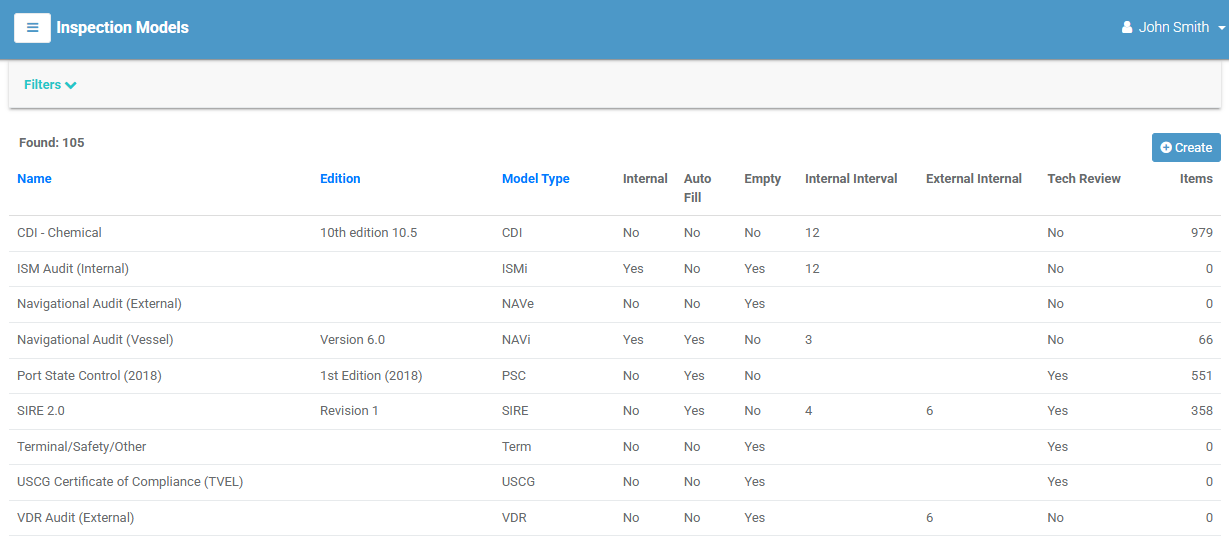
The model list
Each row is a model; select it to open its detail page. Inactive models are greyed out. Columns include the model's Name, Edition, and Model Type, whether it is Internal, Auto Fill, or Empty, its Internal / External Interval, whether it requires a Tech Review, and its number of Items.
Filtering
Select Filters to narrow by Name, Model Types, or Edition. Select [ Clear All ] to reset.
Creating a model
- Select Create (top-right). (Requires the create permission.)
-
Complete the form:
Field Required Notes Name ✔ The model's name. Edition The edition/version label. Model Type ✔ The type (for example SIRE, PSC). Max Score The maximum achievable score. Internal Interval Months between internal inspections (slider). Obs Limit Observation limit (slider). External Interval Months between external inspections (slider). High Risk Limit High-risk threshold (slider). Empty An empty model has no fixed question list — observations are added freely. Active Toggle off to retire the model. Has Rating Whether the model produces a rating. Auto Fill Pre-populates the inspection with the model's items. Requires Tech. Review Whether inspections on this model need a technical review. Notes Free-text notes. -
Select Create. Select Cancel to discard.
The model detail page
Opening a model shows its settings, plus tabs for its structure, files, and history.
The Tasks menu offers:
| Action | What it does |
|---|---|
| Modify | Edit the model's settings. |
| Create a Copy | Duplicate the model — the easiest way to start a new edition without changing one already in use. |
| Print PDF | Produce a PDF of the model (see PDF options). |
| Delete | Remove the model — only possible when no inspections use it. |
Editions and reuse
A model that already has inspections against it can't be deleted, and editing it would affect existing inspections' template. To evolve a template, use Create a Copy and give the copy a new Edition.
Building the model structure
The Items tab is where you build the model's question tree. It shows the model as a hierarchy you can expand and collapse:
Chapter → Section → Question → Sub-question
Use the buttons at the top to add to the structure — they enable based on what you have selected:
| Button | Available when… |
|---|---|
| Add Chapter | Always. |
| Add Section | A chapter is selected. |
| Add Question | A chapter or section is selected. |
| Add Sub Question | A question is selected. |
For each node you can:
- Edit it (its display number, text, and — for questions — details such as requirement type, default risk, and guidance notes).
- Delete it.
- Drag it to reorder the structure.
(Editing the structure requires the appropriate permission.)
Other tabs
| Tab | Contents |
|---|---|
| Files | Attachments — see Attachments. |
| Action Log | A history of changes to the model (with permission) — see Audit & Activity Logs. |
Printing a model
Choosing Tasks → Print PDF opens a short options window where you can include the Default Risk Rating, Guidance Notes, and User Notes in the output before printing.