User Management
The User Management page (sidebar → Administration → User Management) is where you create and manage the people who can sign in to VIMS, along with their roles and access.
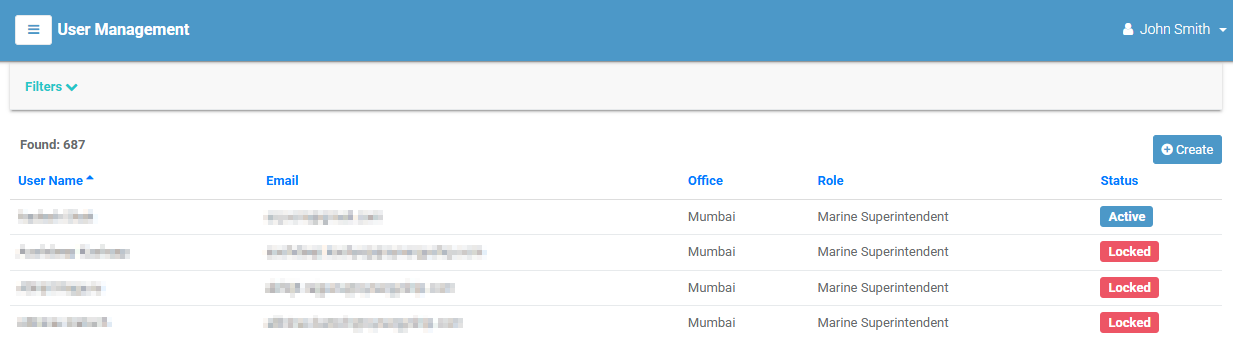
The user list
Each row is a user; select it to open their detail page. Columns:
| Column | Meaning |
|---|---|
| User Name | The user's full name. |
| Their email address. | |
| Office | The office they belong to. |
| Role | Their assigned role (which controls their permissions). |
| Status | Active or Locked. |
Filtering
Select Filters to narrow by User Name, Email, Roles, Offices, or Status (Locked Only / Unlocked Only). Select [ Clear All ] to reset.
Creating a user
- Select Create (top-right). (Requires the create permission.)
-
Complete the form. Required fields are marked:
Field Required Notes First Name ✔ Last Name Email ✔ Used for sign-in and notifications. Role ✔ Determines what the user can see and do — see roles. Office The user's office (may be required depending on configuration). -
Select Create. Select Cancel to discard.
The user detail page
Opening a user shows their first name, last name, email, office, and role.
The Tasks menu offers:
| Action | What it does |
|---|---|
| Modify | Edit the user's details. |
| Reset Password | Reset the user's password. |
| Lock / Unlock | Lock a user out of VIMS, or unlock them. |
| Delete | Remove the user. |
(Each action depends on your permissions.)
Tabs
| Tab | Contents |
|---|---|
| Files | Attachments — see Attachments. |
| Session Log | The user's sign-in history (with permission). |
| Assigned Vessels | The vessels assigned to the user (with permission). |
| Action Log | A history of the user's actions (with permission) — see Audit & Activity Logs. |
| Inspections | Inspections associated with the user. |