Logging In
You reach VIMS in a web browser using the address provided by your organisation. Everything in VIMS sits behind the sign-in screen — you must log in before you can see any page.
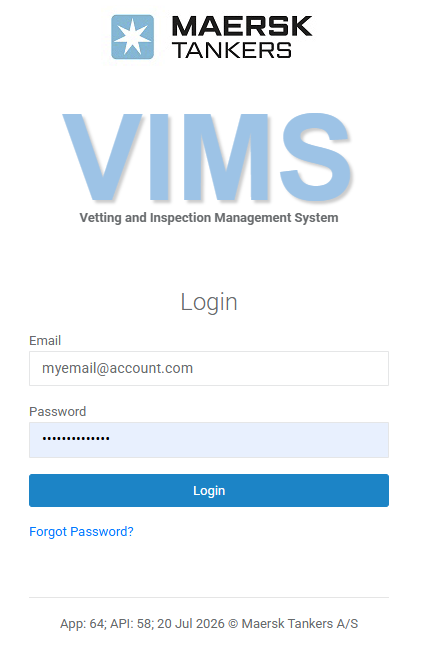
Sign in
- Open your browser and go to your VIMS web address. The Login screen appears.
- In the Email field, enter either your User ID or your email address. Both are accepted.
- Enter your Password.
- Select Login.
When your credentials are accepted, VIMS opens the Dashboard.
The login screen at a glance
| Field / control | Purpose |
|---|---|
| Your User ID or email address. | |
| Password | Your account password. |
| Login | Signs you in. |
| Forgot Password? | Starts the password-reset process — see Password Reset. |
At the bottom of the panel, VIMS shows the current application and API version and the build date. This is useful information to quote if you ever report a problem to your administrator.
If you cannot sign in
| What you see | What it usually means | What to do |
|---|---|---|
| "Please check your credentials" | The User ID / email or password is incorrect. | Re-enter them carefully. Passwords are case-sensitive. |
| A message that your profile is locked | Your account has been locked. | Contact your administrator to have it unlocked. |
| You forgot your password | — | Use Forgot Password? — see Password Reset. |
Accounts are managed by administrators
VIMS does not let you create your own account. New accounts, unlocking, and role changes are all handled by an administrator.
Staying signed in and signing out
After a period of inactivity, VIMS warns you that you are about to be signed out automatically and gives you the chance to stay signed in. To sign out yourself at any time, use the profile menu in the top-right corner — see Screen Layout.