Task Scheduler
The Task Scheduler (sidebar → Inspection Management → Task Scheduler) is where you schedule and track inspection-related tasks — for example planned inspections, reminders, or follow-up work — against a vessel and a user, over a date range.
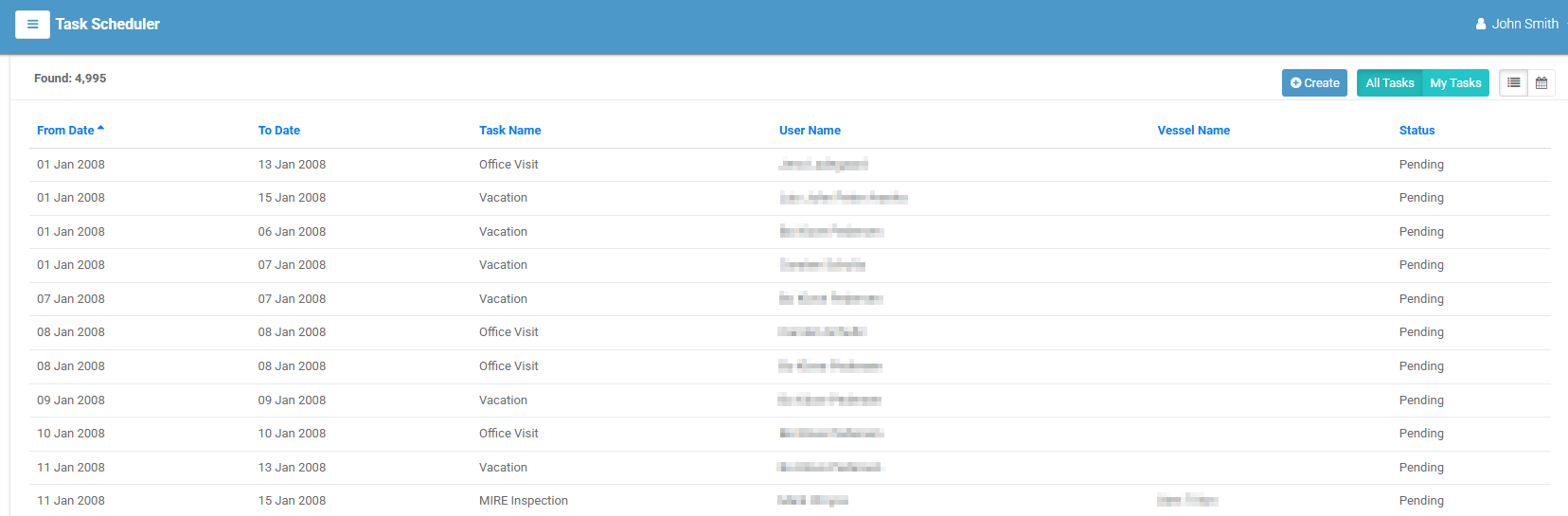
Views and scope
Controls at the top of the page let you change what you see:
- All Tasks / My Tasks — switch between everyone's tasks and just your own. (Seeing all tasks depends on your permissions.)
- List / Calendar — switch between a table and a month calendar. Use the 📋 and 📅 buttons.
- Found: n shows how many tasks match.
List view
Each row is a task; select it to open its detail page. Columns:
| Column | Meaning |
|---|---|
| From Date | Start of the task period. |
| To Date | End of the task period. |
| Task Name | The task, shown with its colour label. |
| User Name | The user the task is assigned to. |
| Vessel | The related vessel, if any. |
| Status | The task's current status. |
Select a column heading to sort.
Calendar view
The calendar shows each task as an event on its dates. Select an event to open that task.
Creating a task
- Select Create (top-right). (Requires the create permission.)
-
Complete the form:
Field Required Notes Vessel The vessel the task relates to. Task Type ✔ The type of task (from the Task Type master list). Status ✔ The task's status. Period ✔ The start and end dates. The number of days is shown once a range is chosen. Reminder Free-text reminder or notes. -
Select Create. Select Cancel to discard.
Task detail
Opening a task shows its details — task name, from/to dates, assigned user, vessel, status, created-on date, and the reminder text.
The Tasks menu offers:
- Modify — edit the task (with permission).
- Delete — remove the task (with permission).
The Files tab holds any attachments for the task.