Password Reset
There are two situations where you set a new password in VIMS:
- You forgot your password and cannot sign in.
- You are signed in and simply want to change your password.
Both are covered below.
If you forgot your password
Use this when you are not signed in.
- On the Login screen, select Forgot Password?.
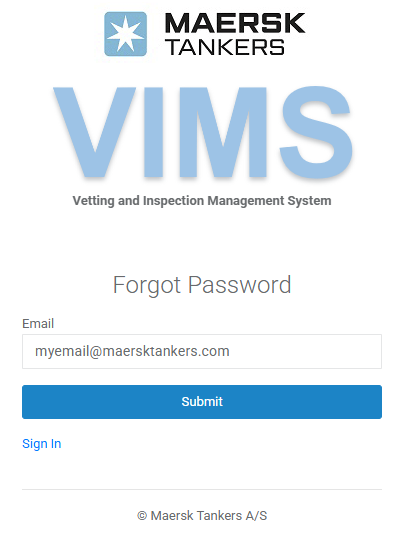
- On the Forgot Password screen, enter your User ID or email address.
- Select Submit. VIMS sends a password-reset email to the address on your account.
- Open the email and follow the reset link.
- On the reset screen, enter and confirm your new password, then submit.
Tip
If the email does not arrive within a few minutes, check your spam or junk folder. If it still does not arrive, confirm with your administrator that the correct email address is on your account.
If you are signed in and want to change your password
- Open the profile menu in the top-right corner (it shows your name).
- Select Password.
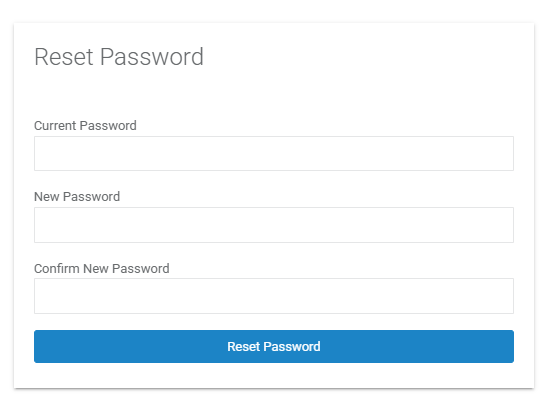
- Enter your Current Password.
- Enter and confirm your New Password.
- Select Reset Password.
Password requirements
When choosing a new password:
- It must be at least 10 characters long and no more than 30.
- The New Password and Confirm New Password entries must match.
Note
When you reset a forgotten password through the emailed link, you are not asked for a current password — the link itself confirms your identity. The current-password field only appears when you change your password while signed in.