Inspections
The Inspections page (sidebar → Inspection Management → Inspections) is the main list of every inspection you have access to. From here you can search and filter, open an inspection, create a new one, and export the list.
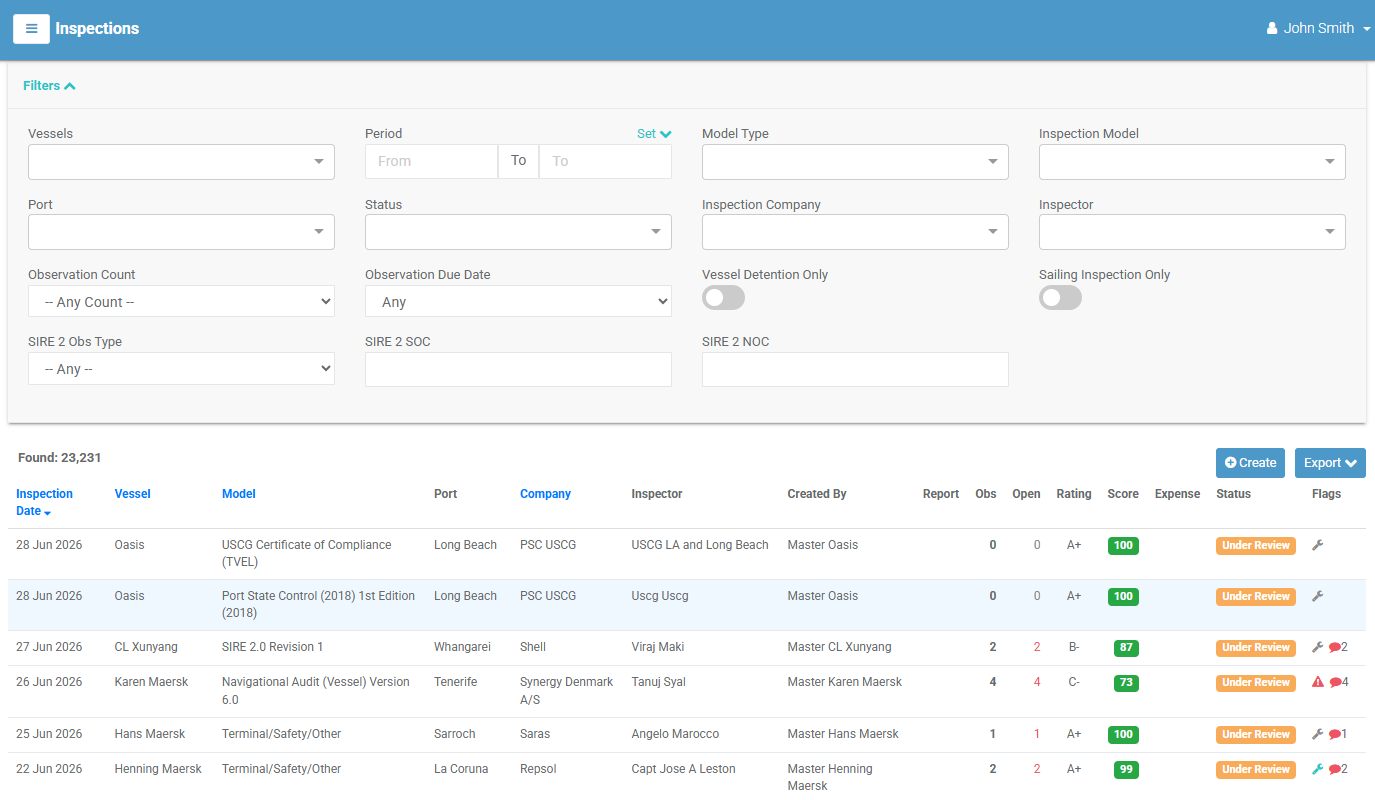
The inspection list
Each row is one inspection. Select a row to open its detail page. The columns are:
| Column | Meaning |
|---|---|
| Inspection Date | The date the inspection took place. |
| Vessel | The vessel inspected. |
| Model | The inspection model the inspection was based on. |
| Port | The port where the inspection took place. |
| Company | The inspection company. |
| Inspector | The inspector who carried it out. |
| Created By | The user who created the record. |
| Report | An 👁 icon appears when a report has been generated — select it to view. |
| Obs | Total number of observations. |
| Open | Number of observations still open (shown in red when above zero). |
| Rating | The inspection's overall rating. |
| Score | The vessel score, shown as a coloured badge (see below). |
| Expense | The recorded cost of the inspection. |
| Status | The lifecycle stage (see below). |
| Flags | Small icons highlighting attention items (see below). |
Select a column heading (where sorting is available) to sort by that column; select it again to reverse the order.
Status badges
| Badge | Status | Meaning |
|---|---|---|
| grey | Draft | Being carried out; observations still being recorded. |
| amber | Under Review | Submitted for technical review. |
| blue | Reviewed | Review complete. |
| light blue | Closed | Finalised. |
Score colours
The Score badge is colour-coded so problem inspections stand out at a glance:
- 🟢 Green — 70 or above
- 🟡 Amber — 45 to 69
- 🔴 Red — below 45
Flag icons
| Icon | Meaning |
|---|---|
| ⚠ Triangle | An observation is due soon or overdue (amber = within 7 days, red = overdue). |
| 🔧 Wrench | A technical review is required (grey = pending, blue = completed). |
| 🏆 Trophy | The inspection earned a VBIS prize (two trophies for the top prize). |
| 💬 Comment | New comments have been added, with a count. |
Finding inspections with filters
Select Filters at the top of the page to expand the filter panel. As you set filters the list updates automatically, and Found: n shows how many inspections match. Select [ Clear All ] to reset them.
Available filters include:
- Vessels, Inspection Model, Model Type, Port, Inspection Company, Inspector — pick one or more of each.
- Period / From–To dates — a date range, with quick presets.
- Status — one or more lifecycle stages.
- Observation Count — Zero, 1 or 2, 3 to 5, or Over 5.
- Observation Due Date — Overdue, or due within 7 / 15 / 30 days.
- Vessel Detention Only and Sailing Inspection Only — on/off toggles.
- SIRE 2 filters — Observation Type (Process, Human, Hardware, Photograph), SOC text, and NOC text.
Tip
The set of filters you see can vary depending on where you have opened the list from and your role.
Exporting the list
Select Export (top-right) and choose PDF or Excel to download the currently filtered list.
Creating an inspection
- On the Inspections page, select Create (top-right). (You need the create permission; if you don't see the button, your role doesn't include it.)
-
Fill in the form. Required fields are marked:
Field Required Notes Inspection Model ✔ (on create) The template the inspection is based on. Cannot be changed after creation. Vessel ✔ The vessel being inspected. Inspection Company ✔ The company carrying out the inspection. Port Where the inspection takes place. Responsible User The VIMS user accountable for the inspection. Commenced The date work began. Inspection Date ✔ The date of the inspection (cannot be earlier than Commenced). Operations ✔ One or more vessel operations. Expense The cost of the inspection. Inspector ✔ Appears once a model is chosen. Use the + icon to add a new inspector, if you have permission. Vessel Detention Appears for PSC-type models only. Sailing Inspection Toggle on to reveal required Sailing From and Sailing To ports. Remarks Free-text notes. -
Select Create. The inspection opens at its detail page, ready for you to record observations. Select Cancel to discard.
The inspection detail page
Opening an inspection shows its full detail: a summary panel at the top and a set of tabs below.
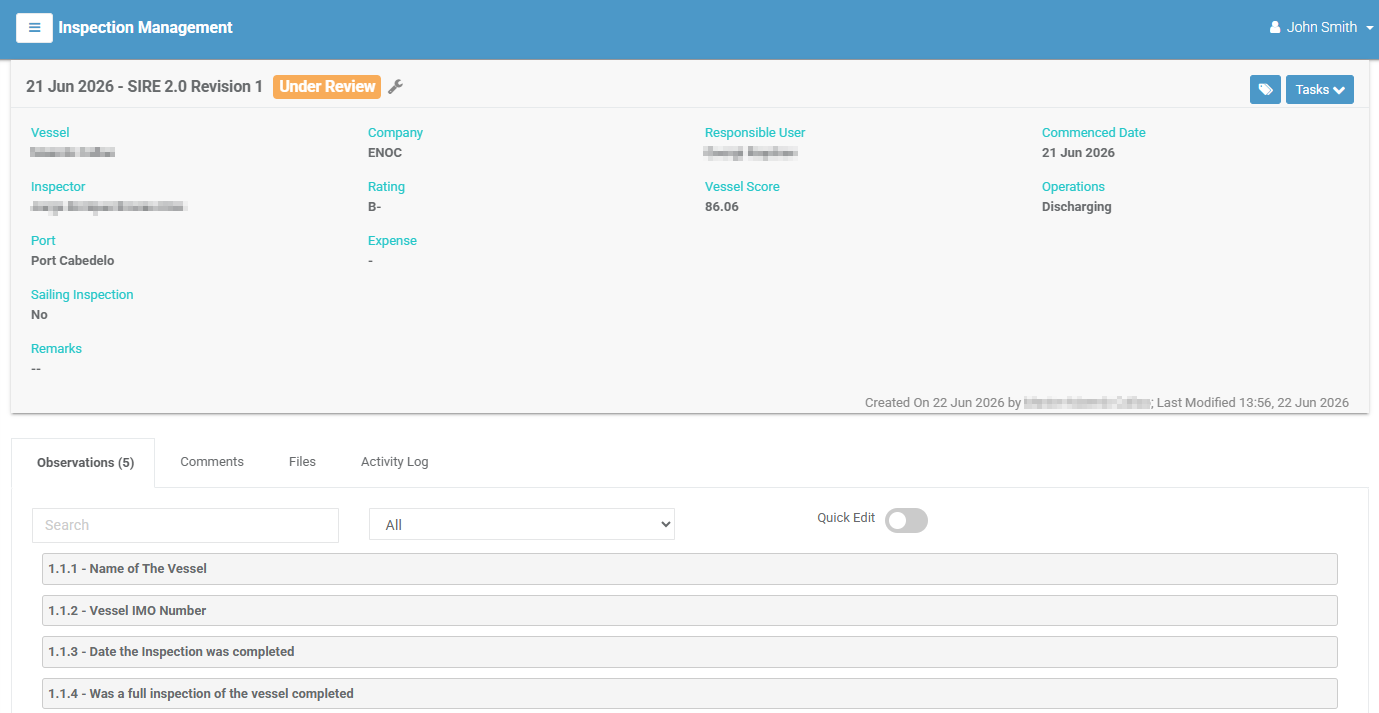
The summary panel shows the inspection date and model, the current status badge, and key fields — vessel, company, responsible user, commenced date, inspector, rating, vessel score, operations, port, expense, sailing details, and remarks — along with who created it and when it was last modified.
The Tasks (actions) menu
The Tasks button in the summary panel opens a menu of actions. Which ones appear depends on the inspection's status and your role:
| Action | What it does |
|---|---|
| Modify | Opens the inspection for editing (only while it is editable). |
| Create Report | Generates an inspection report — see Reports. |
| Technical Review | Marks the inspection as technically reviewed (for the relevant reviewer role). |
| Tech Review Reminder | Sends a reminder that a technical review is needed. |
| Change To … | Moves the inspection one step along the lifecycle — see Changing the status. |
| Delete | Deletes the inspection (available to the creator while in Draft, or with delete permission). |
The tabs
| Tab | Contents |
|---|---|
| Observations | The inspection's items and the observations raised against them — see Observations. |
| Comments | Discussion on the inspection — see Comments. |
| Files | Attachments — see Attachments. |
| Action Log | A history of changes made to the inspection — see Audit & Activity Logs. (Shown if your role can view it.) |
Editing an inspection
Open the inspection and choose Tasks → Modify, or use the edit action from the list. The form is the same as when creating, except the Inspection Model cannot be changed. Select Update to save.
Changing the status
Use Tasks → Change To … to move the inspection one stage forward or back along Draft → Under Review → Reviewed → Closed. This requires the status-change permission.
You cannot close an inspection with open observations
Every observation must be closed before the inspection can move to Closed. Close the outstanding observations first — see Observations.
Generating a report
Choose Tasks → Create Report. You can typically:
- Download the report as PDF or Word.
- Choose to include the full model (all items, not only those with observations).
- Have the report emailed to you instead of downloaded.
Deleting an inspection
Choose Tasks → Delete. A Draft inspection can be deleted by the user who created it; otherwise deletion requires the delete permission. Deletion cannot be undone.