Observations
An observation is a finding recorded against an item during an inspection. Each observation is tracked from Open to Closed, and carries an answer, a risk rating, and comments.
There are two ways to reach observations:
- The Observations page in the sidebar (Inspection Management → Observations) — a list of observations across all inspections, with its own filters. Good for follow-up and reporting.
- The Observations tab inside a single inspection — where observations are actually raised and edited for that inspection.
Both are covered below.
The Observations list (all inspections)
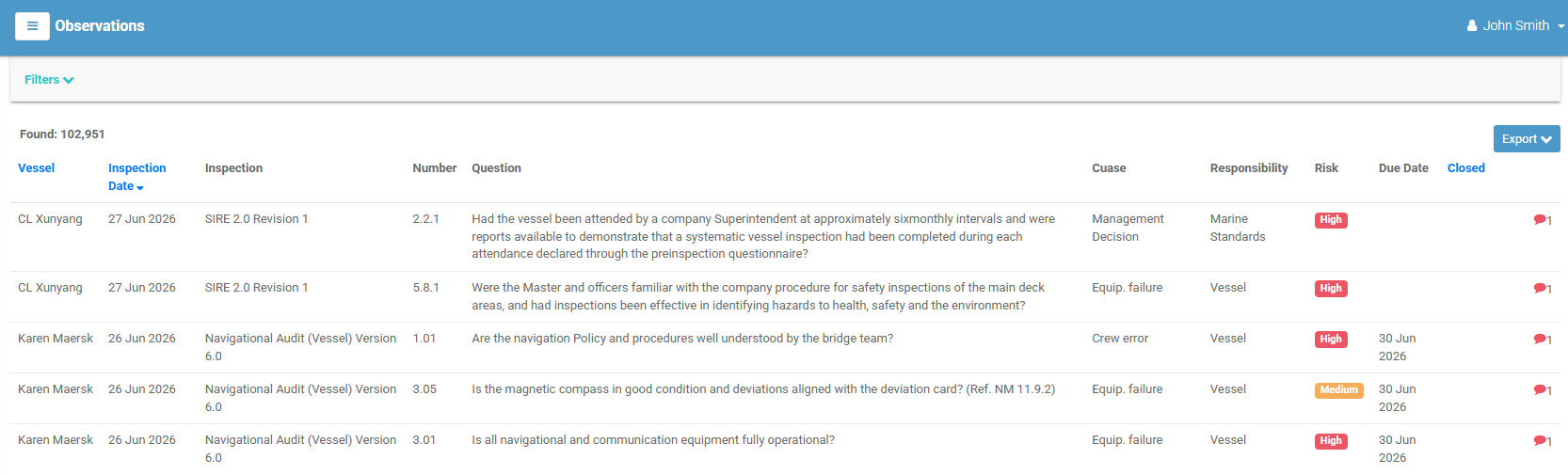
Each row is one observation. Select a row to open its detail page. Columns include:
| Column | Meaning |
|---|---|
| Vessel | The vessel the observation belongs to. |
| Inspection Date | The date of the parent inspection. |
| Inspection | The inspection model and edition. |
| Number | The item/question number. |
| Question | The item text. |
| Cause | The recorded cause. |
| Responsibility | The party responsible. |
| Risk | The risk rating, as a coloured badge (see Risk ratings). |
| Due Date | When rectification is due. |
| Closed | The date the observation was closed (blank if still open). |
A 📎 paperclip with a count shows attachments; a 💬 comment icon flags new comments.
Filtering and exporting
Select Filters to narrow the list. There is a rich set of filters, including Vessels, Model Types, Companies, Inspection Date range, Question Number/Text, Inspector Observations and Operator Comments text, Causes, Responsibilities, Risk, Status (All / Open Only / Closed Only), Due Date (Overdue / within 7 / 15 / 30 days), Inspector, Port, a Knowledge Sharing Only toggle, and the SIRE 2 filters. Select Export to download the filtered list as PDF or Excel.
Raising observations inside an inspection
Open an inspection and go to its Observations tab. This lists the inspection's items and any observations recorded against them.
- Use the search box and the type filter (All, Answered No, Open Only, With New Comments, Overdue, Overdue or Due Within 7 Days) to focus the list.
- Turn on Quick Edit to edit observations inline without opening each one.
- Select Create to add a new observation, or select an existing item to open its detail page.
The observation detail page
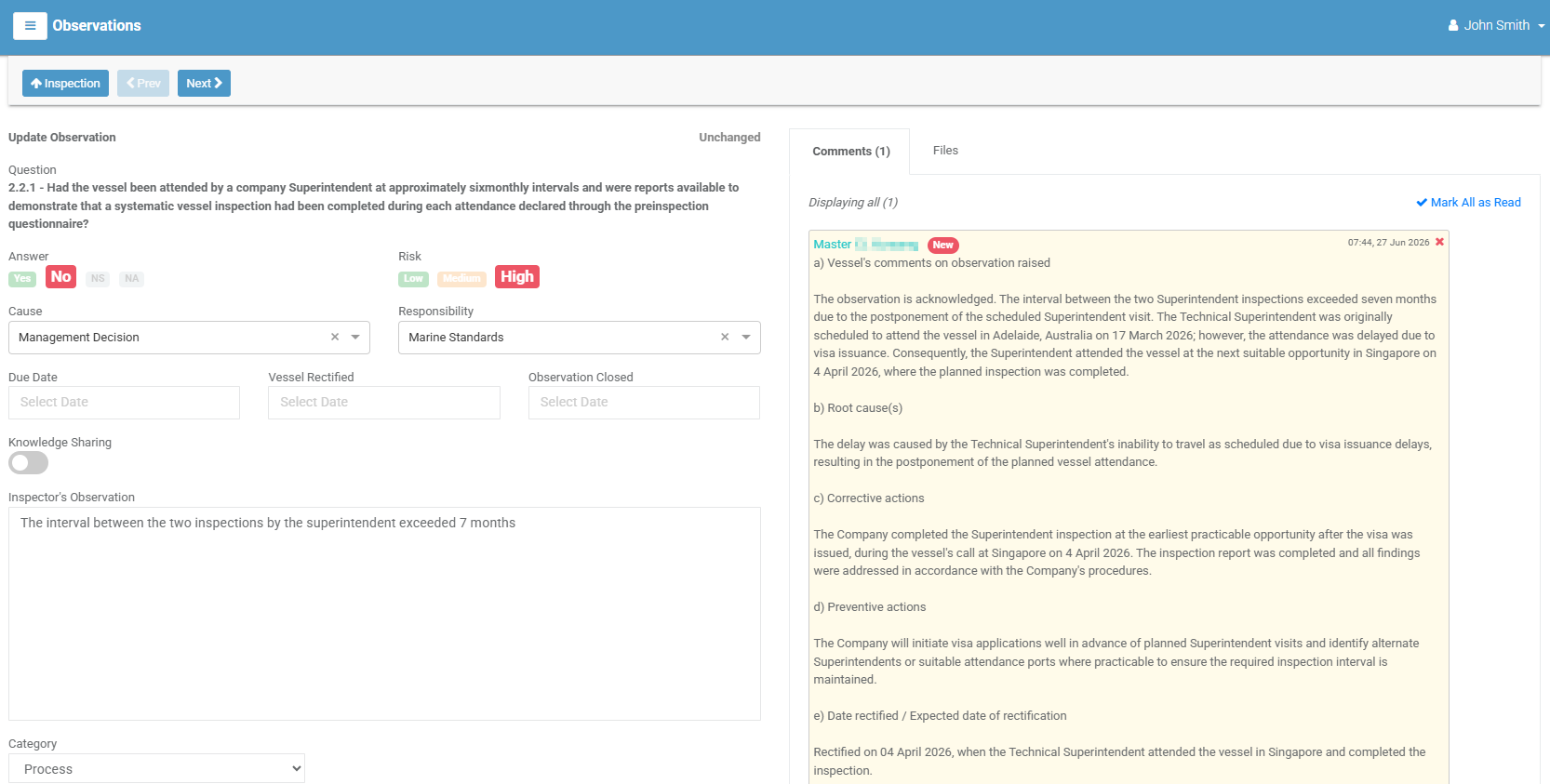
The observation detail page is where you record and update a finding. Your changes save automatically as you make them — a small indicator shows Unchanged → Changed → Saving… → Saved.
Answers and risk
Choose an Answer for the item:
| Answer | Meaning |
|---|---|
| Yes | Satisfactory. |
| No | Not satisfactory — this raises an observation and reveals the fields below. |
| NS | Not Seen. |
| NA | Not Applicable. |
When the answer is No, set the Risk rating:
- 🟢 Low 🟡 Medium 🔴 High
Recording the details
For an observation (answer No) you can also record:
| Field | Purpose |
|---|---|
| Cause | Why the finding occurred (from the Causes master list). |
| Responsibility | Who is responsible (from the Responsibilities master list). |
| Knowledge Sharing | Flags the observation for knowledge sharing. |
| Due Date | When rectification is due. |
| Vessel Rectified | The date the vessel rectified the finding. |
| Observation Closed | The date the observation was closed (see below). |
| Inspector's Observation | The inspector's description of the finding. |
| Operator's Comment / Follow-Up Comment | Responses from the operator and follow-up notes (available to reviewer roles). |
Select Notes (where shown) to read the item's guidance notes.
Additional fields for some inspection types
Certain models show extra fields — for example SIRE 2 observations add a Category (Process, Human, Hardware, Photograph) plus SOC and NOC entries, and PSC observations add PSC Action Codes. These appear automatically when relevant.
Closing and reopening
- To close an observation, set the Observation Closed date.
- A closed observation shows a Re-Open button to open it again if needed.
- Remember: an inspection cannot be moved to Closed while any of its observations are still open — see Changing the status.
Navigating and other actions
- Use Inspection to jump back to the parent inspection, and Prev / Next to move between observations.
- Delete removes an open observation (with permission).
- The Files and Comments tabs hold the observation's attachments and comments.