Screen Layout
Once you are signed in, every page in VIMS shares the same frame: a sidebar on the left, a top bar across the top, and the page content in the middle.
┌──────────────┬─────────────────────────────────────────────┐
│              │  ☰  Page title                 [ Your Name ▾]│  ← Top bar
│   Sidebar    ├─────────────────────────────────────────────┤
│   (menus)    │                                             │
│              │            Page content                     │
│              │                                             │
└──────────────┴─────────────────────────────────────────────┘
The sidebar
The sidebar on the left is how you move around VIMS.
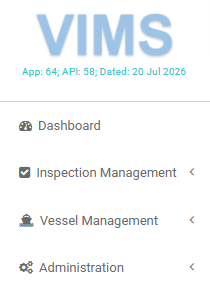
- At the top it shows the VIMS logo and a small line with the current app and API version and build date.
- Dashboard is the first item and takes you to the Dashboard.
- Below it, menus are grouped into collapsible sections — for example Inspection Management, Vessel Management, and Administration. Select a group heading to expand or collapse it, then select an item within it to open that page.
Menus vary by role
The items you see are controlled by your role's permissions, so your sidebar may not look identical to a colleague's. If something described in this guide is not in your sidebar, your role most likely does not include that permission. See What you see depends on your role.
The top bar
The bar across the top of every page contains:
| Control | What it does |
|---|---|
| ☰ (menu toggle) | Collapses or expands the sidebar to give the content more room. |
| Page title | The name of the page you are currently on. |
| Profile menu (your name, top-right) | Opens a menu with Password (change your password) and Sign Out. |
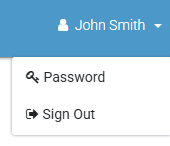
To change your password from here, see Password Reset.
Session timeout
For security, VIMS signs you out automatically after a period of inactivity. Shortly before that happens, a warning appears with the option to stay signed in — select it (or simply carry on using VIMS) to remain logged in.
New-version notice
When a new version of VIMS becomes available while you are working, a notification invites you to refresh. Refreshing loads the latest version; it is safe to do so between tasks.
When VIMS is unavailable
If the system cannot reach its back-end service, VIMS shows a service-unavailable page instead of the usual screen. This is temporary — wait a short while and try again, and if it persists, notify your administrator.